You can approve affiliate applications one by one before new affiliates can log in, or let everyone in right away. Ultimate Affiliate Pro can also ask new affiliates to verify their email address with a link, so only real addresses join your program.
Both checks work on top of the registration form. Use manual approval when you want to review who promotes your brand, and email verification to keep fake sign-ups out. You can use one, both or neither. If you have not set up the form yet, start with Set up the registration, login and password pages.
Before you start
- Ultimate Affiliate Pro installed, with your license active.
- A working registration page.
- Your site can send email. See Email notifications.
How approval works #
Approval is controlled by the WordPress role new affiliates get when they register. WordPress roles decide what a user can do on your site; you can read more about them in the WordPress roles documentation.
- Automatic
- Role Subscriber (default): new affiliates can log in and share links right after they register.
- Manual
- Role Pending: new affiliates cannot log in until you approve them.
- After you approve
- The affiliate gets the Role After Approval and the approval email.
Turn on manual approval #
Go to Ultimate Affiliate Pro›Showcases›Registration Form. In the Register Showcase tab, scroll to Additional Settings.
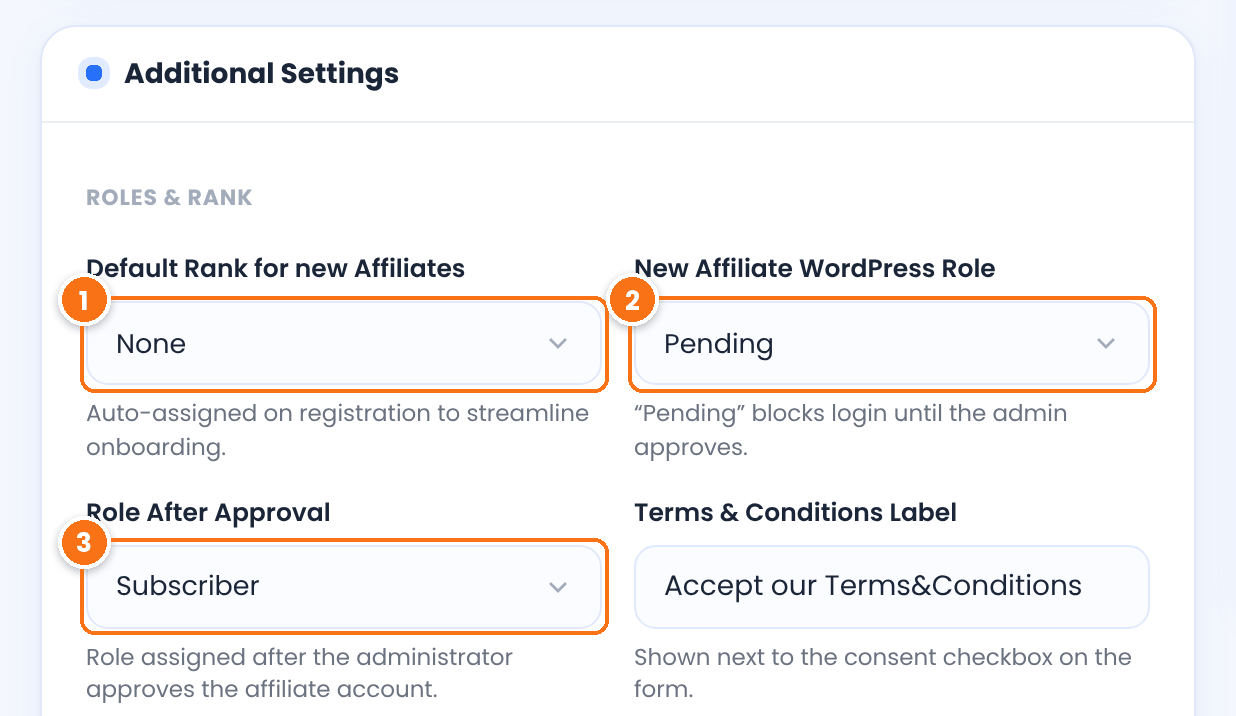
The rank, and so the commission rate, every new affiliate starts with. Choose None to assign ranks yourself. See Ranks.
Choose Pending to review every application. Pending users cannot log in to your site. If they try, they see the pending message from the login form’s Custom Messages.
Default: Subscriber (no approval)
The role the affiliate gets when you approve them. Subscriber suits most sites. Administrator is not in the list, for safety.
Default: Subscriber
Click Save Changes.
Approve affiliate applications #
Go to Ultimate Affiliate Pro›Affiliates. The Pending Approval card at the top shows how many applications are waiting. Open the ⋮ menu at the end of the row.
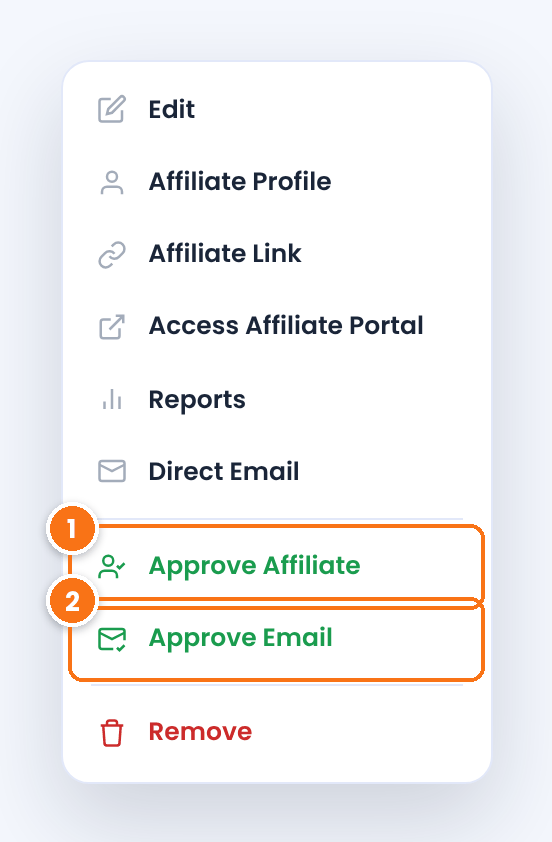
- Approve Affiliate gives the affiliate the Role After Approval and sends the approval email. The affiliate can log in right away.
- Approve Email appears when email verification is on and the affiliate has not clicked the verification link yet. It marks the address as verified for them.
To review an application first, choose Edit in the same menu: you see every answer from the registration form that has On Admin turned on. To turn an application down, choose Remove.
Set up the approval emails #
Go to Ultimate Affiliate Pro›Email Notifications and check that these notifications exist and are active. Add any that are missing with Add New:
Tells you that a new application is waiting. It is sent for every new registration while the notification is active.
Confirms to the applicant that you received the registration. With manual approval, tell them here that you will review it.
Sent to the affiliate when you click Approve Affiliate. Include the login page link so they can start.
Require email verification #
Go to Ultimate Affiliate Pro›Modules and open Email Verification.
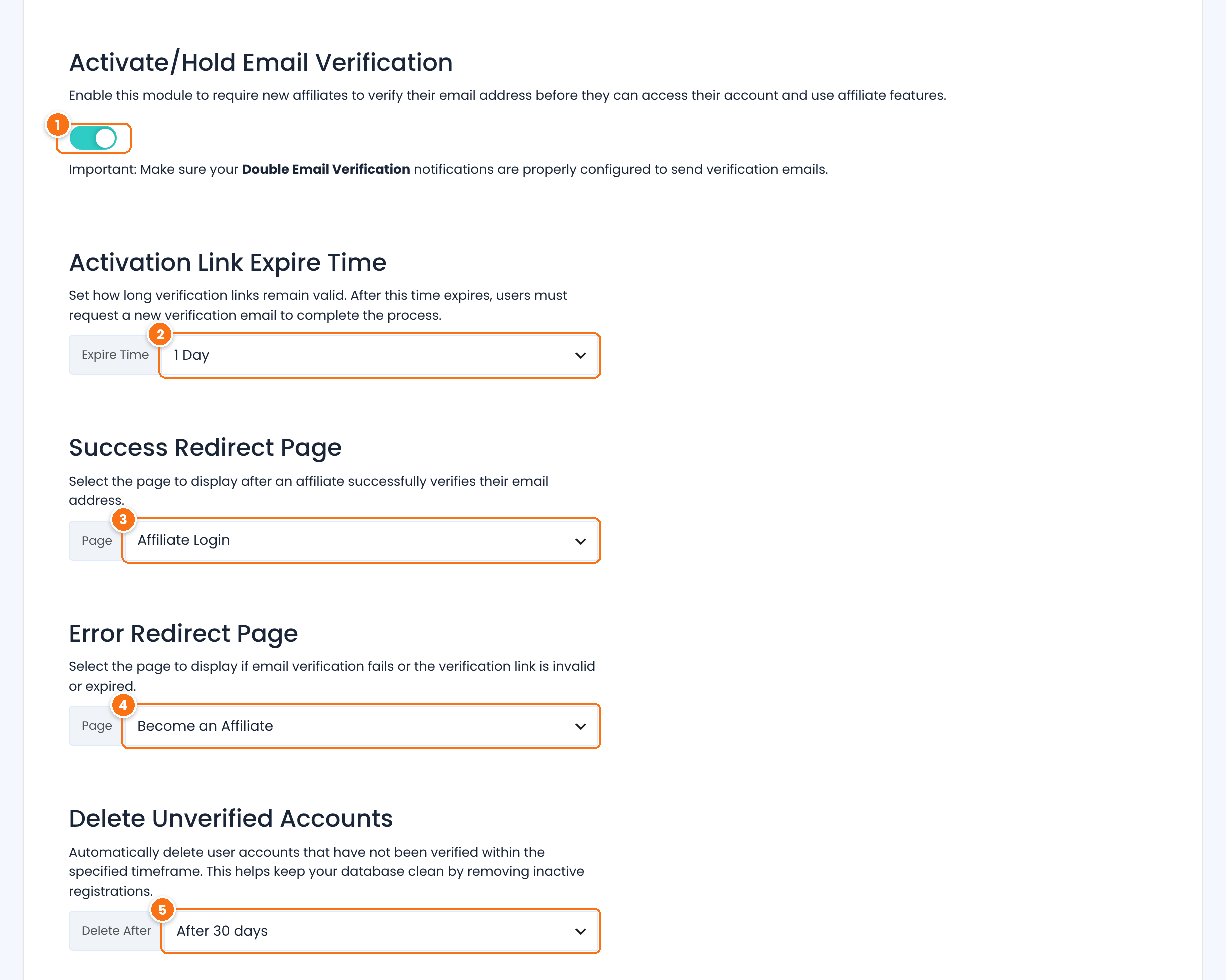
Turns verification on. Every new affiliate gets an email with a verification link and cannot log in until they click it.
Default: Off
How long the link works, counted from the moment the affiliate registered: Never, 15 Minutes, 1 Hour, 12 Hours or 1 Day.
Default: Never
The page affiliates see after a successful verification, for example your login page. When no page is set, they go to your homepage.
The page affiliates see when the link is wrong or has expired. When no page is set, they go to your homepage.
Deletes affiliates who did not verify their email within 1, 7, 14 or 30 days of registering.
Default: Never
Click Save Changes. Then, in Email Notifications, make sure Double Email Verification Request is active: it is the email that carries the link, through the {verify_email_address_link} tag. You can also add Double Email Verification Completed, which is sent after a successful verification.
Tip
With both checks on, an affiliate needs a verified email and your approval before they can log in. The message they see while the email is not verified is Email Pending, in Showcases›Login Form›Custom Messages. If you collect newsletter subscribers, the address is sent to your email list only after it is verified.
Test it #
- Register a test affiliate in a private browser window, with an email address you can read.
- Try to log in. You should see the pending message, or the email pending message if verification is on.
- Click the link in the verification email, then approve the affiliate in Ultimate Affiliate Pro›Affiliates.
- Log in again. The Affiliate Portal should open.
If you add new affiliates to an email list, verification also works as double opt-in: the address is sent to the list after the affiliate confirms it. See Collect opt-in subscribers.
Frequently asked questions #
Can affiliates be approved automatically?
Yes. Keep New Affiliate WordPress Role on Subscriber, or any role other than Pending. New affiliates are active as soon as they register.
How do I find affiliates waiting for approval?
In Ultimate Affiliate Pro, Affiliates, the Pending Approval card shows how many are waiting, and each waiting affiliate has Approve Affiliate in the actions menu of its row.
The verification link expired. What should the affiliate do?
Open the affiliate’s actions menu in the Affiliates list and choose Approve Email to verify the address yourself. To give affiliates more time, choose a longer Activation Link Expire Time or Never.
Does the Automatic Login after Registration option work with approval?
Automatic login applies only when new affiliates are not set to Pending. With manual approval, affiliates log in after you approve them.
Can I change the pending and verification messages?
Yes. Edit Default message for pending users and Email Pending in Showcases, Login Form, Custom Messages, and Account is not approved yet in Showcases, Registration Form, Custom Messages.


