If your affiliates are also your customers, give them the affiliate dashboard in WooCommerce My Account. Ultimate Affiliate Pro adds an Affiliate tab to the My Account menu, with the full Affiliate Portal inside it. BuddyPress sites get the same tab in the member profile.
Your customers then manage their orders and their affiliate account in one place, without a second login page. The tab shows the same Affiliate Portal you set up in Affiliate Account Page, with the same tabs and design. For WooCommerce referral tracking, see the WooCommerce integration.
Before you start
- WooCommerce (for the My Account tab) or BuddyPress (for the profile tab) installed and active.
- The Affiliate Portal set up. See Affiliate Account Page.
Add the affiliate dashboard to WooCommerce My Account #
Go to Ultimate Affiliate Pro›Modules and open WooCommerce Account Page Integration.
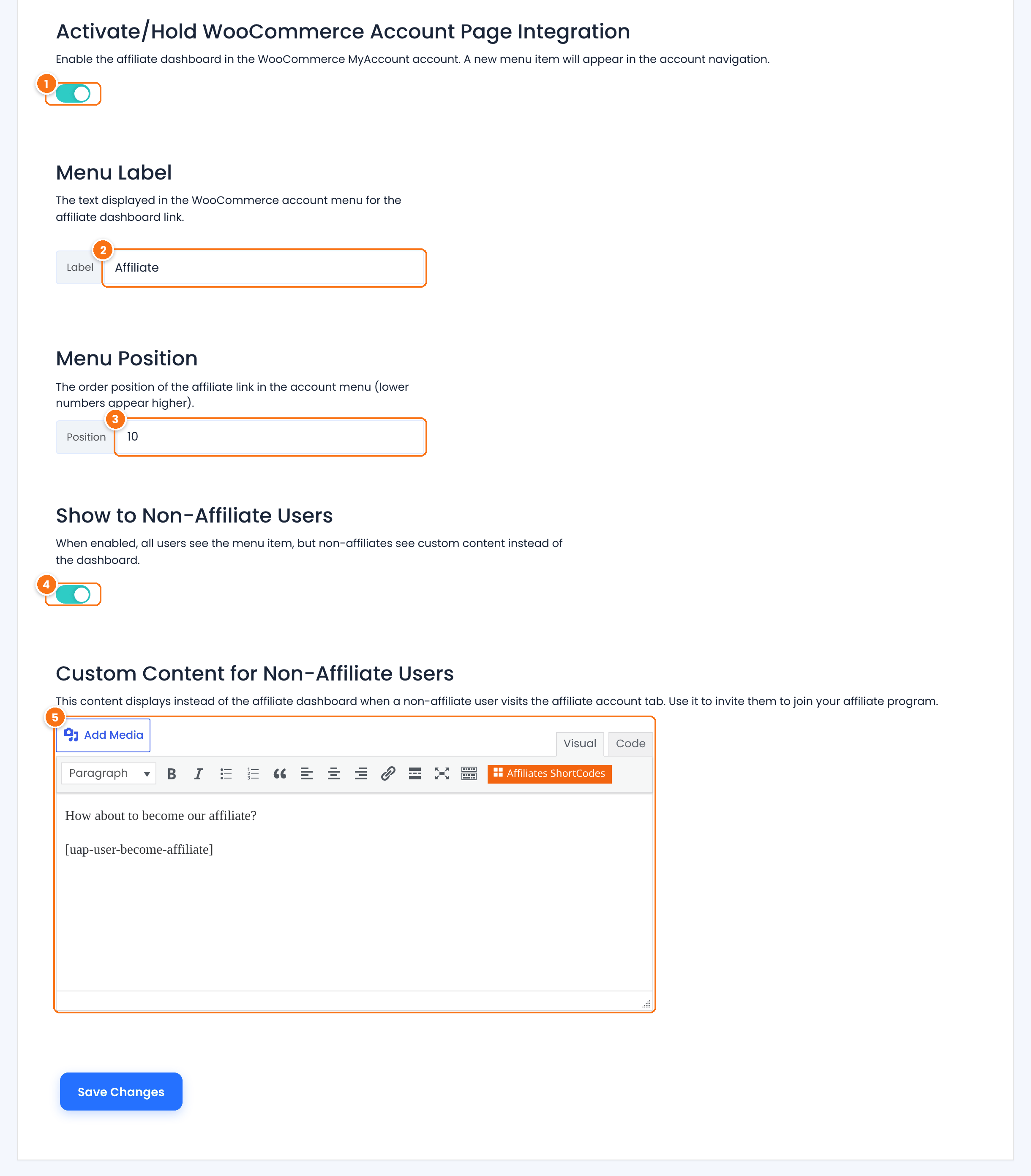
Adds the tab to My Account. The tab appears while WooCommerce is active.
Default: On
The name of the tab in the My Account menu, for example Affiliate, Partner program or Earn with us. It is also the page title when the tab is open.
Default: Affiliate
Where the tab sits in the menu. 1 puts it first. A number larger than the number of menu items puts it last. WooCommerce has about six items by default (Dashboard, Orders, Downloads, Addresses, Account details, Log out).
Default: 10
When on, every logged-in customer sees the tab. Customers who are not affiliates see the custom content below instead of the dashboard. When off, only affiliates see the tab.
Default: On
What customers who are not affiliates see in the tab. The default text includes the [uap-user-become-affiliate] shortcode, a button that turns the logged-in customer into an affiliate with one click, without filling in the registration form.
Default: How about to become our affiliate? [uap-user-become-affiliate]
Click Save Changes.
Tip
Write a short pitch in the custom content: what affiliates earn, how payouts work and a link to your program terms. Customers who already trust your store are often your best affiliates.
Add the Affiliate tab to BuddyPress profiles #
Go to Ultimate Affiliate Pro›Modules and open BuddyPress Account Page Integration. It has the same settings, with BuddyPress names:
Adds the tab to the member profile navigation. Members see it on their own profile only.
Default: On
The name of the tab in the profile navigation.
Default: Affiliate
The position of the tab among the BuddyPress profile tabs. Lower numbers appear first.
Default: 10
When on, members who are not affiliates see the tab with the custom content below.
Default: On
What members who are not affiliates see in the tab.
Default: How about to become our affiliate? [uap-user-become-affiliate]
Click Save Changes.
Test it #
- Log in as a test affiliate and open My Account (or your BuddyPress profile). Click the Affiliate tab and check that the Affiliate Portal loads with its menu.
- Log in as a customer who is not an affiliate. Check that the tab shows your custom content, or that it is hidden if you turned off Show to Non-Affiliate Users.
- Click the Become an Affiliate button as that customer, then check that the customer appears in Ultimate Affiliate Pro›Affiliates.
Frequently asked questions #
The Affiliate tab in My Account opens a 404 page. How do I fix it?
In WordPress, go to Settings, Permalinks and click Save Changes without changing anything. This refreshes the rewrite rules, so WordPress recognizes the new My Account endpoint. WooCommerce explains how My Account endpoints work in Understanding WooCommerce endpoints.
What is the URL of the affiliate tab in My Account?
It is your My Account page followed by uap, for example yourstore.com/my-account/uap/. You can link to it from emails or menus.
Do I still need the Affiliate Portal page?
Yes, keep it. Affiliates who are not WooCommerce customers use it, and the links in affiliate emails point to it. Both show the same portal.
Can customers join the affiliate program from My Account?
Yes. With Show to Non-Affiliate Users on, customers see the custom content, and the [uap-user-become-affiliate] button turns them into affiliates with one click. To make every new customer an affiliate automatically, see turn existing users and customers into affiliates.
Can I hide the tab from customers who are not affiliates?
Yes. Turn off Show to Non-Affiliate Users. Only affiliates then see the tab.


