Product commission rates let you pay a different commission on selected products, instead of the affiliate’s usual rank rate. Use them to promote a new product, to pay more on high-margin items, or to pay less on products with thin margins.
Ultimate Affiliate Pro gives you two places to set them. Product Rates work with every connected store and can target specific affiliates and dates. In WooCommerce you can also set a rate right on the product, the variation or the product category. How these rates are compared with the rank rate is explained in How commissions are calculated.
Before you start
- Ultimate Affiliate Pro installed, with your license active.
- At least one rank with a rate. See Ranks: commission tiers for affiliates.
- A connected store with products, such as WooCommerce, Easy Digital Downloads, Ultimate Membership Pro or Ultimate Learning Pro.
How product commission rates are applied #
A product rate does not switch off the rank rate. For each product in the order, Ultimate Affiliate Pro calculates every rate that applies and keeps the biggest or the lowest amount, as set in Settings›General Settings, Which Rate should be used?. The default is Biggest Amount, so a product rate pays more only when it beats the rank rate.
- Product price
- $24.00
- Rank rate 20%
- $4.80
- Product rate, flat
- $4.00
- With Biggest Amount
- $4.80 referral
- With Lowest Amount
- $4.00 referral
Create a product rate #
Go to Ultimate Affiliate Pro›Product Rates and click Add New Rate. Fill in the first cards:
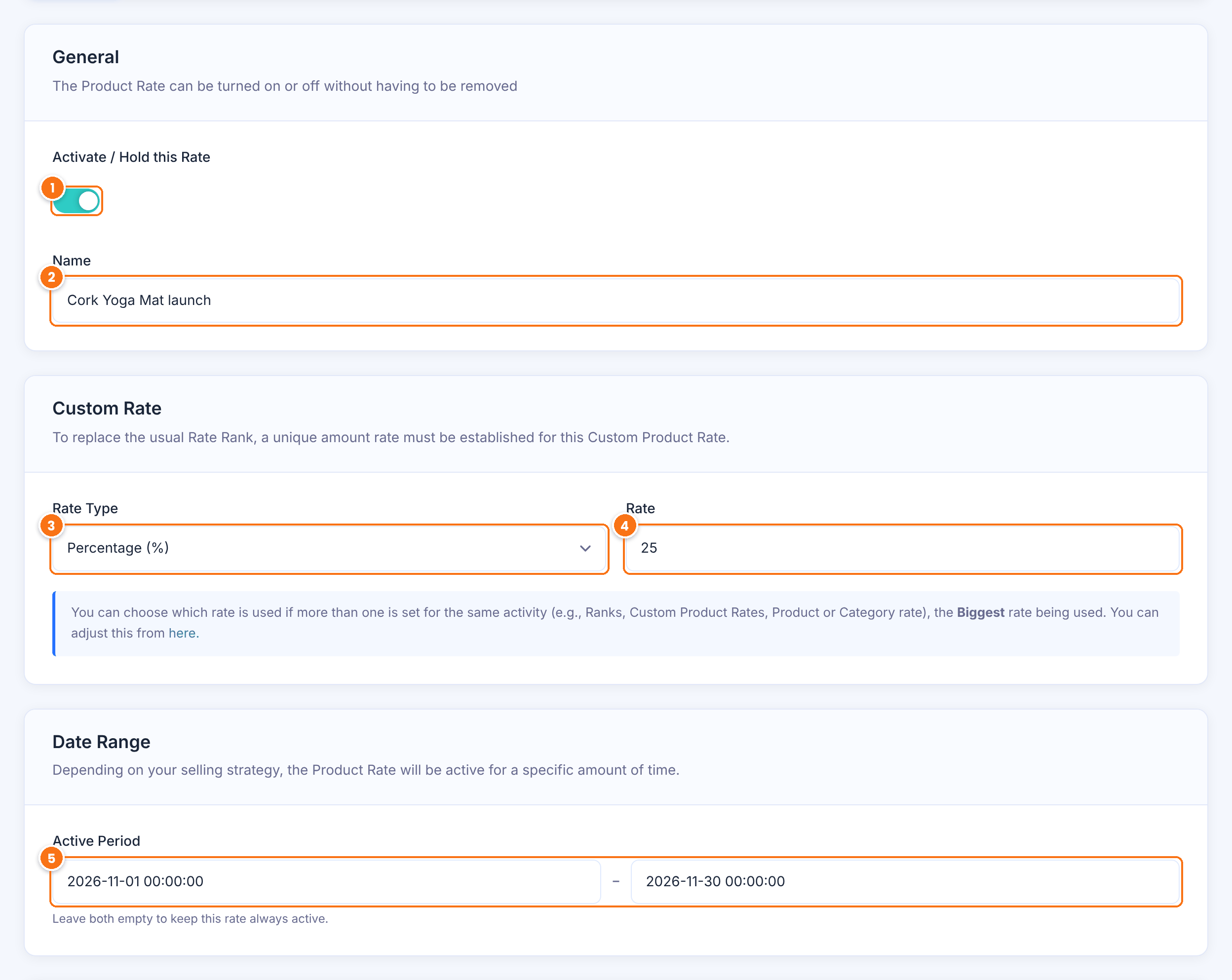
Turns the product rate on or off without deleting it.
Default: On
An internal name, for example Cork Yoga Mat launch. Each product rate needs a unique name.
How the commission is calculated for the selected products.
- Percentage (%): a share of the product amount.
- Flat Rate: a fixed amount for each product line in the order.
The rate value, for example 25. Required.
A start and an end date for limited-time rates, such as a launch or a seasonal campaign. Set both dates, or leave both empty to keep the rate always active.
Choose the products and affiliates #
In the Targeting Settings card, decide where the rate applies.
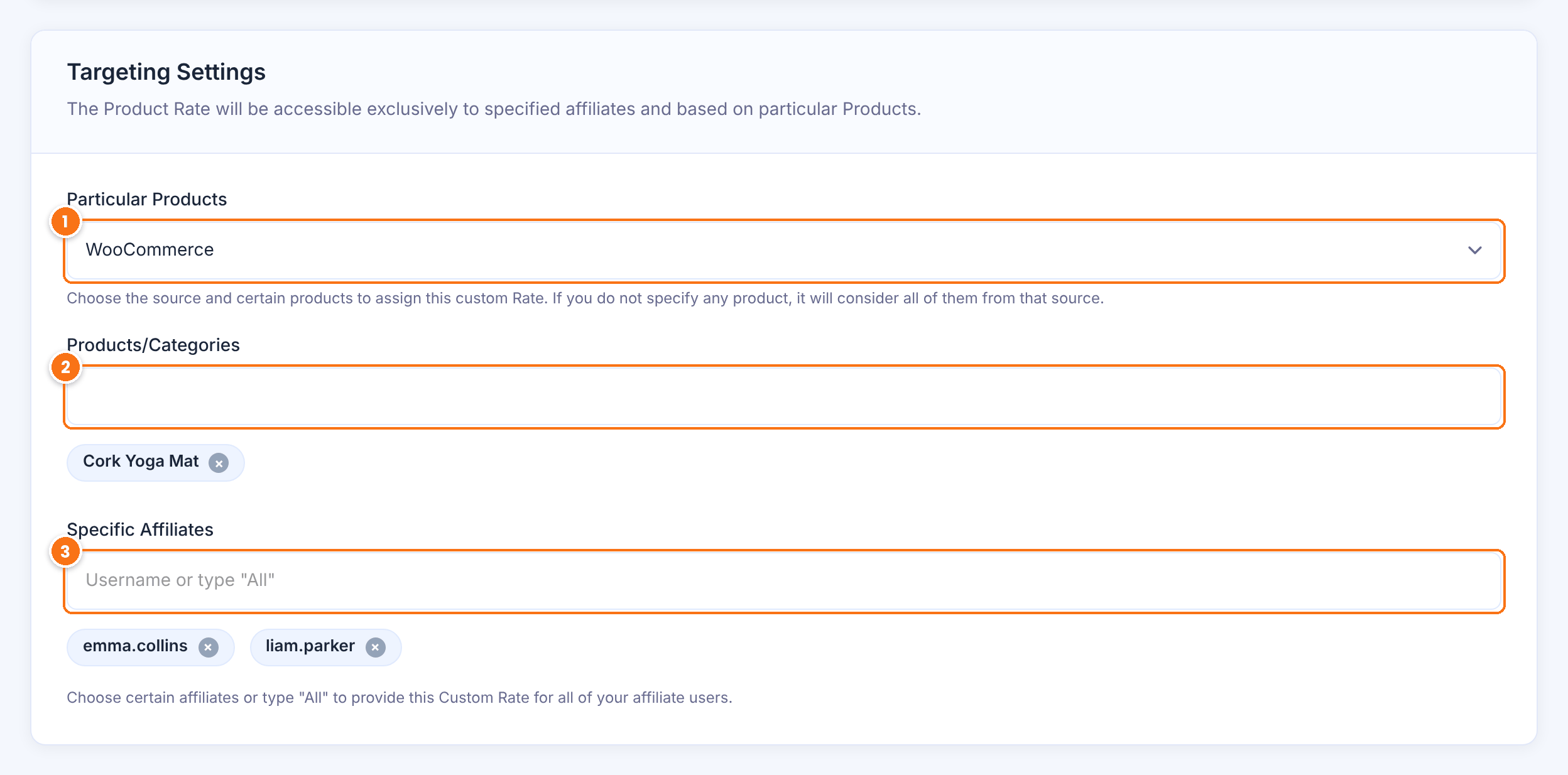
The store the products come from. The list shows the active ones: WooCommerce, Easy Digital Downloads, Ultimate Membership Pro, Ultimate Learning Pro, and stores added by integration add-ons.
Start typing a product name and pick it from the list. For WooCommerce, you can also type a category name to add the products that are in that category now. Leave it empty to apply the rate to all products of the store. For other stores the field is called Products.
Type a username to give the rate to selected affiliates only, or type All to give it to every affiliate. When you leave it empty, the rate applies to all affiliates.
Click Save Changes. The rate appears in the Product Rates list, where you can edit or delete it.
Set a rate on a WooCommerce product #
For a WooCommerce product, you can also set the rate in the product itself. Go to Products›All Products, edit the product and open the Ultimate Affiliate Pro – Custom Referral Rate tab in the Product data box.
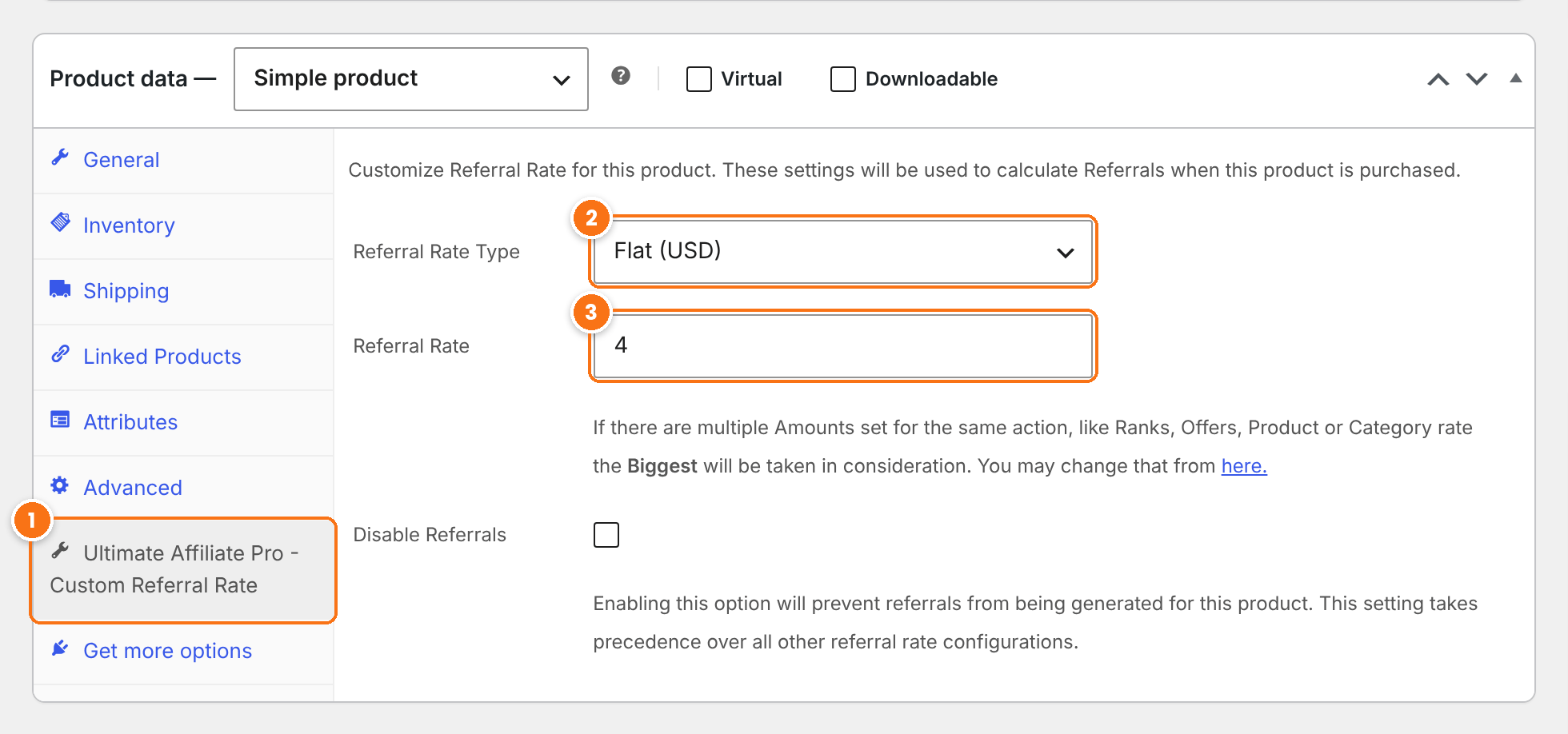
The tab with the product’s affiliate settings.
The type of rate for this product.
- Flat (USD): a fixed amount in your currency for each order line with this product.
- Percentage (%): a share of the product amount.
- Default Affiliate system Settings: no product rate; the other rates apply.
Default: Default Affiliate system Settings
The rate value.
Click Update. To stop commissions on the product completely, see Include or exclude products from commissions.
Variable products #
Each variation can have its own rate. Set it on every variation that should earn a different rate. WooCommerce explains variations in its variable products guide. Open the Variations tab, expand a variation and scroll to Affiliate Program – Custom Referral Rate.
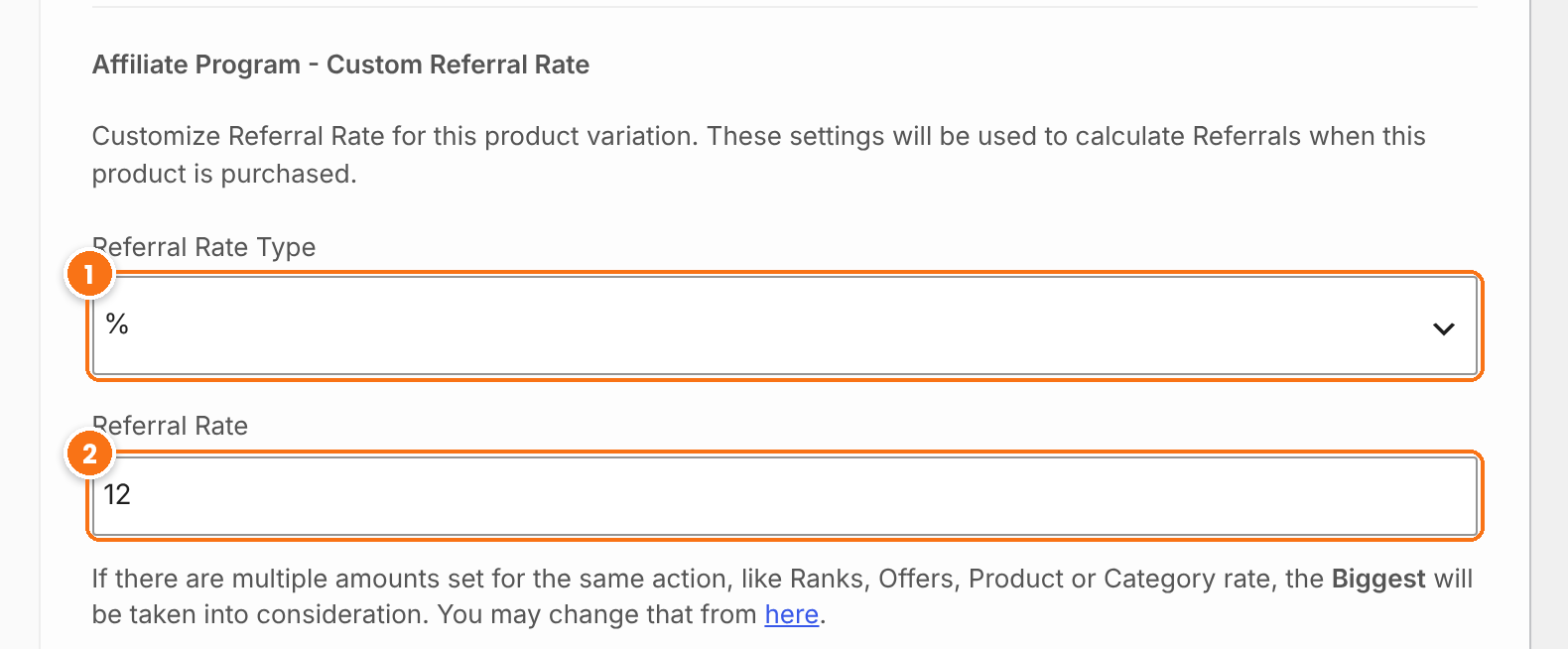
Your currency for a flat rate, % for a percentage, or Default for no variation rate, so the other rates apply.
The rate value for this variation.
Click Save changes, then Update.
Set a rate for a WooCommerce category #
To use one rate for a whole group of products, go to Products›Categories, edit the category and scroll to Affiliate Program – Custom Referral Rate. The same fields are available when you add a new category.
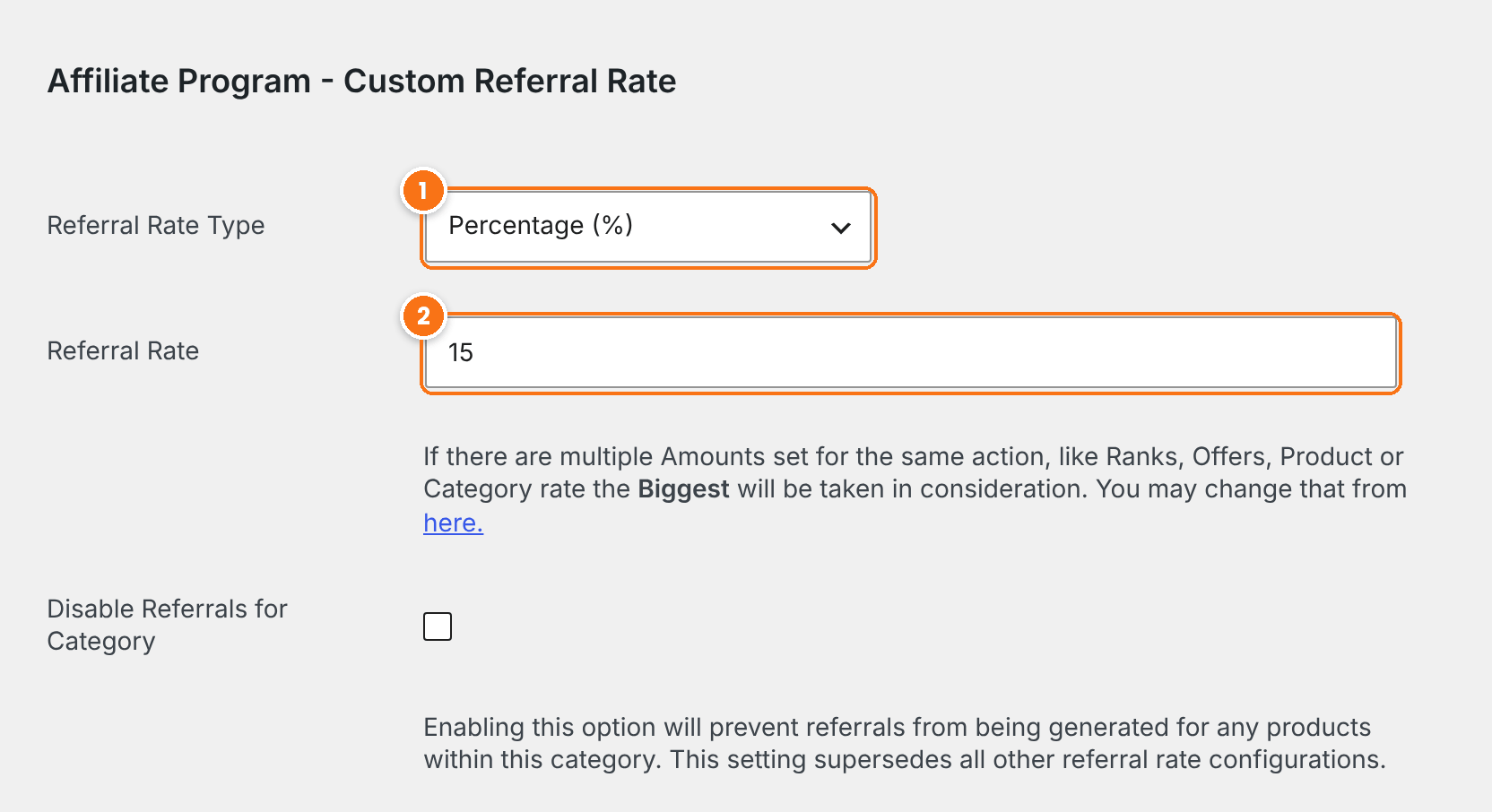
Flat, Percentage (%), or Default Affiliate system Settings for no category rate.
Default: Default Affiliate system Settings
The rate value for the products in this category.
Click Update. When a product belongs to several categories with rates, each category rate joins the comparison.
Test it #
- Open a referral link of an affiliate the rate applies to, in a private browser window.
- Buy the product, and one product without a custom rate.
- Go to Ultimate Affiliate Pro›Referrals, open the new referral and check that the amount uses the product rate for that product only.
Frequently asked questions #
Does a product rate replace the rank rate?
It competes with it. Ultimate Affiliate Pro keeps the biggest or the lowest amount, as set in Which Rate should be used?. With the default Biggest Amount, a lower product rate has no effect.
Can I give a higher rate to one affiliate only?
Yes. Create a product rate, pick the products, and add only that affiliate in Specific Affiliates. Leave the products empty to raise the rate on every product for that affiliate.
Is a flat rate multiplied by the quantity?
No. A flat rate is paid once for each order line, whatever the quantity. A percentage rate follows the line amount, so it grows with the quantity.
Can I run a rate for a limited time?
Yes. Set a start and an end date in Active Period. Outside those dates the product rate is ignored.
Do product rates work with memberships and courses?
Yes. Pick Ultimate Membership Pro or Ultimate Learning Pro in Particular Products and select the levels or courses.


