Ultimate Affiliate Pro decides where affiliates land after they log in, register or log out, and keeps them out of the WordPress dashboard. You set the affiliate login redirect and the other redirects in one screen, and choose which user roles may still open wp-admin.
Ultimate Affiliate Pro sets these redirects for you on activation, using the pages it creates. Change them when you use your own pages, for example a custom landing page after registration. To check which pages are used for login, registration and the portal, see registration, login and password pages.
Before you start
- Ultimate Affiliate Pro installed, with your license active.
- The pages you want to redirect to, published.
Set the affiliate login redirect and other default redirects #
Go to Ultimate Affiliate Pro›Settings›Redirects Setup. The Default Redirects card controls where affiliates go after an action.
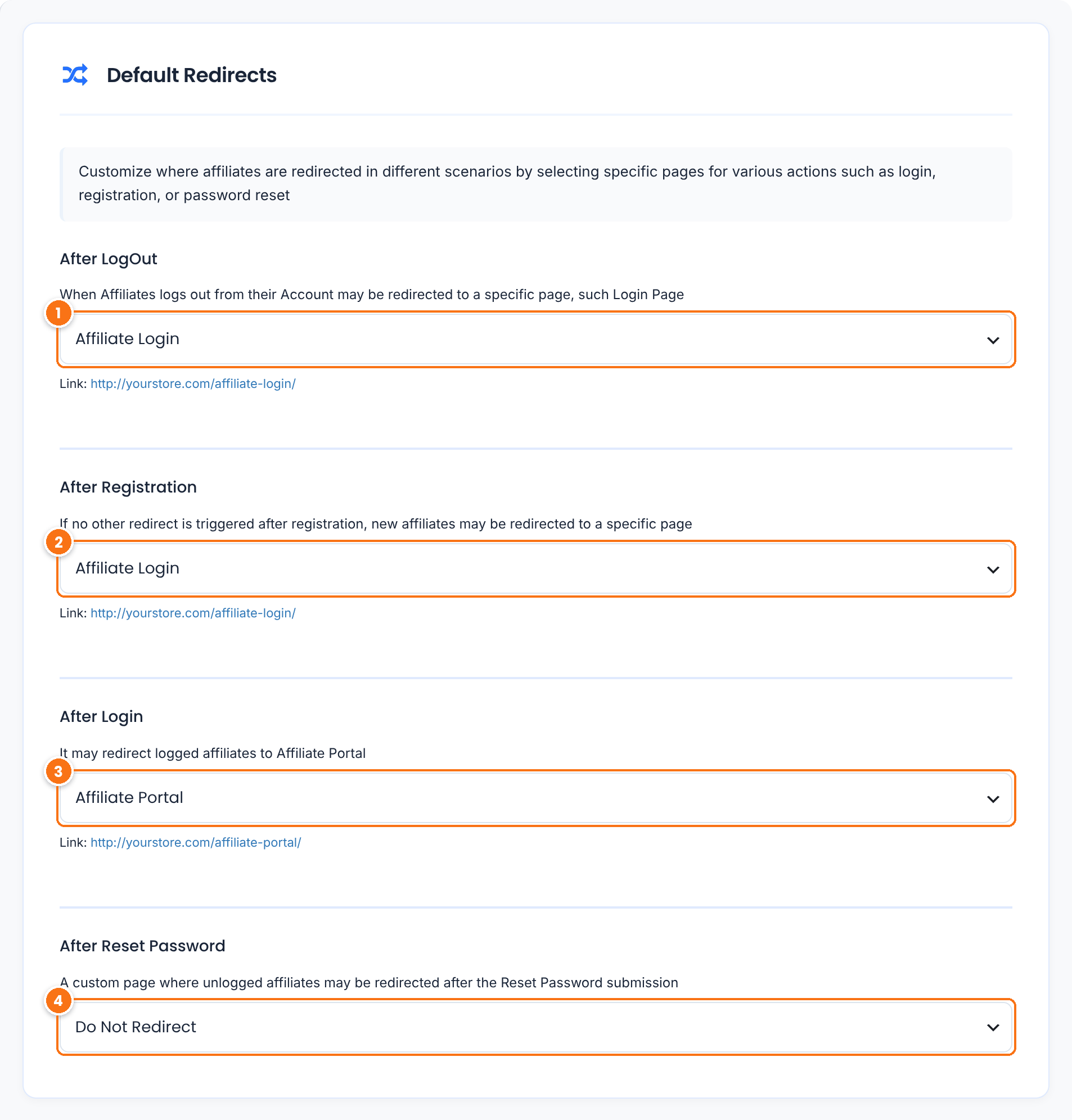
The page affiliates see after they log out.
Default: Affiliate Login page
The page new affiliates see after they submit the registration form. With Do Not Redirect, they stay on the registration page and see the success message.
Default: Affiliate Login page
The page affiliates see after they log in with the affiliate login form. Keep the Affiliate Portal here, so affiliates go straight to their stats and links.
Default: Affiliate Portal page
The page affiliates see after they click the confirmation link in the reset password email. With no page selected, they land on your homepage.
Default: Do Not Redirect
Each field lists your published pages. Under the field, Link shows the address of the page you picked.
Set the extra redirects #
Scroll to Extra Redirects. These protect the affiliate pages: they send visitors away from pages that make no sense for them, such as the login page for someone already logged in.
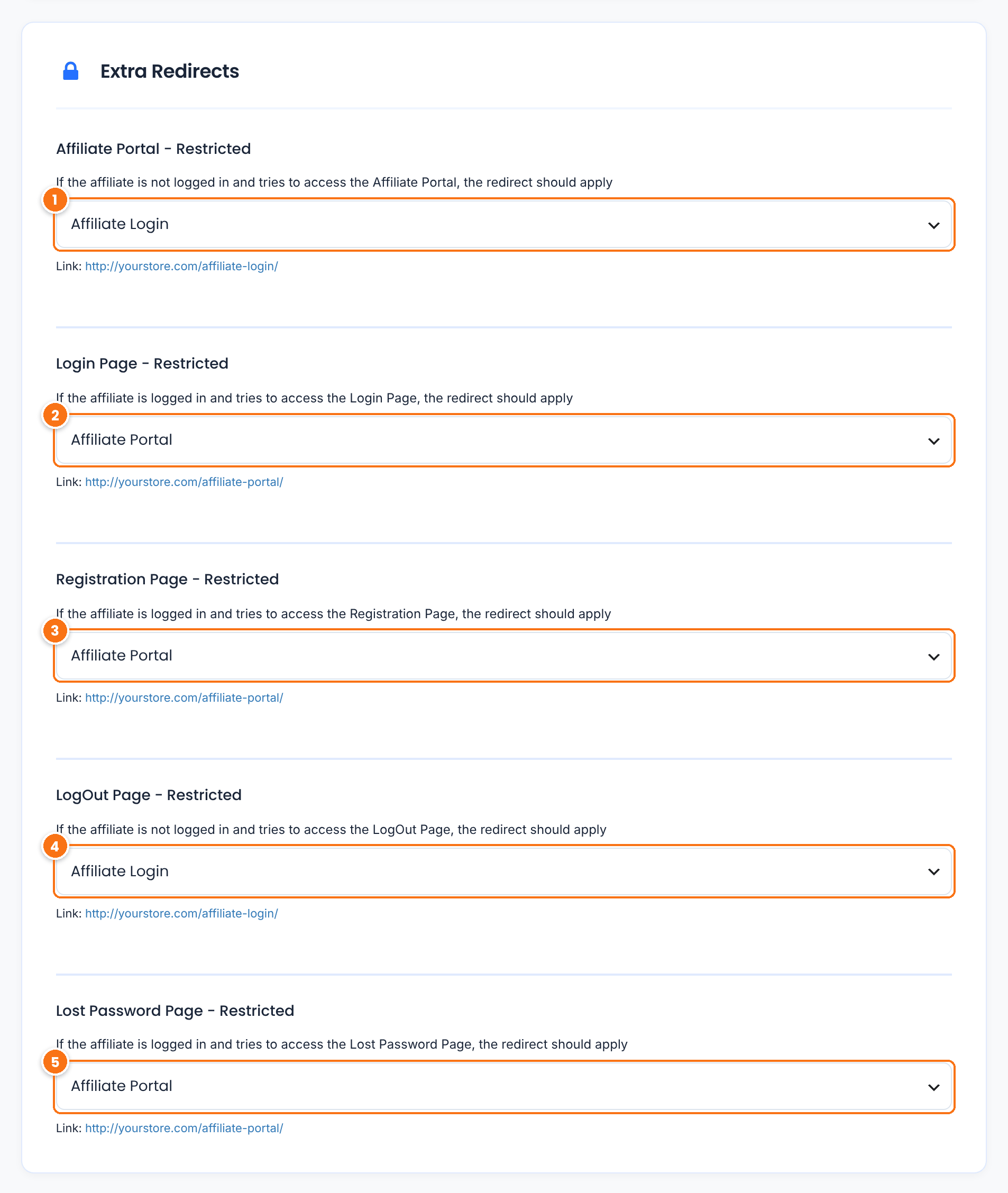
Where visitors who are not logged in go when they open the Affiliate Portal.
Default: Affiliate Login page
Where logged-in affiliates go when they open the login page.
Default: Affiliate Portal page
Where logged-in affiliates go when they open the registration page.
Default: Affiliate Portal page
Where visitors who are not logged in go when they open the logout page.
Default: Affiliate Login page
Where logged-in affiliates go when they open the lost password page.
Default: Affiliate Portal page
Click Save Changes at the bottom of the screen.
Keep these pages public
The homepage, the affiliate login page and the registration page must be open to visitors who are not logged in. If a membership or maintenance plugin restricts them, affiliates can’t log in or register, and visitors from referral links may not land on your site. Check the access rules of those plugins.
Control who can open the WordPress dashboard #
Ultimate Affiliate Pro keeps logged-in users out of wp-admin, so affiliates work only in the Affiliate Portal. Go to Ultimate Affiliate Pro›Settings›WP Dashboard Access.
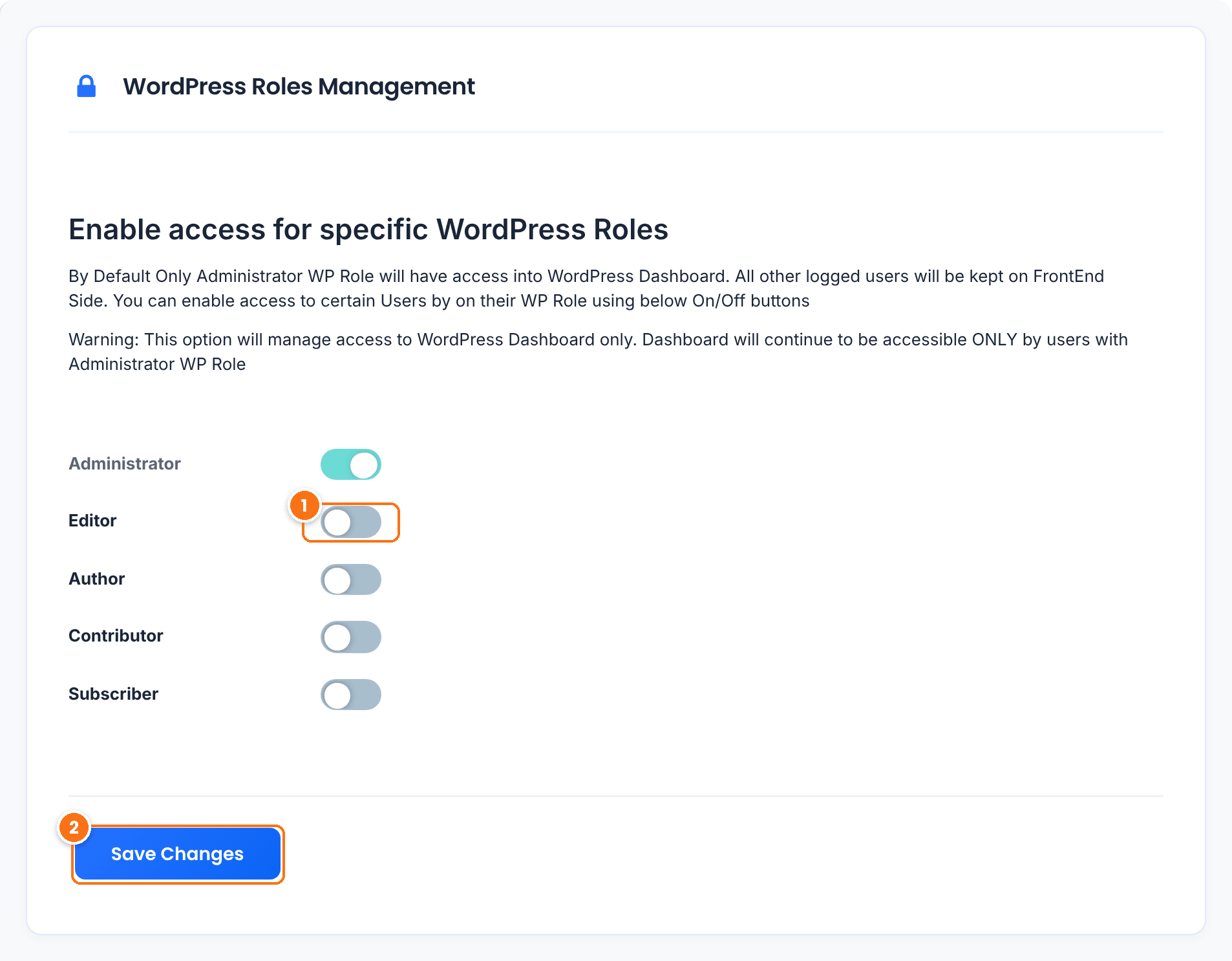
One switch for each WordPress role on your site. Turn a role on to let its users open the WordPress dashboard. Administrator is always on.
Default: Only Administrator
Saves the list of allowed roles.
Users whose role is off are sent to your homepage when they try to open wp-admin, and the WordPress admin bar is hidden for them on the front end.
Allow your team’s roles
This setting applies to every logged-in user, not only affiliates. If you have editors, authors or, with WooCommerce, shop managers who work in wp-admin, turn their roles on. Learn more about each role in Roles and Capabilities.
Test it #
- In a private window, open the Affiliate Portal page without logging in. You land on the page set in Affiliate Portal – Restricted.
- Log in as a test affiliate with the affiliate login form. You land on the page set in After Login.
- Open
yourstore.com/wp-admin/as that affiliate. You are sent to the homepage. - Log out and check the page set in After LogOut.
Frequently asked questions #
How do I send affiliates to the Affiliate Portal after login?
Go to Ultimate Affiliate Pro, Settings, Redirects Setup and select your Affiliate Portal page in After Login. This is the default after activation.
Can affiliates access the WordPress dashboard?
Not by default. Only administrators can open wp-admin. To allow a role, turn it on in Settings, WP Dashboard Access.
My shop manager can’t open wp-admin anymore. How do I fix it?
Turn on the Shop Manager role in Ultimate Affiliate Pro, Settings, WP Dashboard Access and click Save Changes. Do the same for any other role your team uses.
Do these redirects work with the WordPress login page?
The After Login redirect applies to the affiliate login form of Ultimate Affiliate Pro. Add the [uap-login-form] shortcode to your login page and send affiliates there.
Where do new affiliates go if their account needs approval?
After registration they go to the After Registration page. Until you approve them, they can’t log in and the login form shows the pending message. See manage affiliates.


